Download Links

Simulate 3D | SBW (Win32) | Bifurcation Discovery | FluxBalance

Wednesday, April 20, 2011

Flux Balance Constraints for libSBML 5.0.0

In time for todays session on SBML at HARMONY 2011 below a set of windows binaries that include libSBML 5.0.0 with the first beta version of the Flux Balance Constraints package. This time the package is implemented using the libSBML 5 extension API, which allows easy interaction with SBML Level 3 extensions.

For more information about the Flux Balance Constraints package, please have a look at the proposal page. On that page you find a detailed description about the current proposal, as well as links to examples.

Below you find full installers (including C#, Java, Perl and Python bindings) as well as python bindings for specific versions of Python.

If you don’t use Windows and still would like to try out the FBC package on your platform, I have a source package. In order to use this, download the libSBML 5 source distribution, as well as the fbc-package, then extract the fbc-package into the libsbml 5 source tree. Next, use CMake to configure the program to your needs, ensuring to set ENABLE_FBC=ON (or in the UI check the ENABLE_FBC option).

  1. libSBML 5.0.0 source release
  2. fbc-package-beta-1

Please let me know how the package is working for you.

Friday, March 18, 2011

Support for SBGN-ML

The recent release of SBW 2.8.2 adds support for SBGN-ML to the Systems Biology Workbench. This has been implemented using the SBML Layout Library, a .NET library that reads layout and rendering information from SBML models. This library is available separately and is used in many projects for example:

Of course it can also be used directly in any .NET application. The easiest way to get started is this:

  • install SBW (this will install the latest version of the layout lib)
  • start Visual Studio
  • add a reference to the SBMLExtension.dll as can be found in C:\Program Files (x86)\KGI\SBW\Layout to a new project (any .net language can be used).

Before we get started let us make sure we have some SBGN-ML files available, so at this point you would download a couple .sbgn files from the SBGN-ML repository.

The SBML Layout library converts all layout annotation it understands into the SBML Layout and Rendering Annotations. This is done by using:

var layout = Util.readLayoutFromFile(@”path/filename”);

where the  filename could be an SBML file with layout annotations (JDesigner / JDesigner 2 annotations, SBML Layout / SBML Rendering information, CellDesigner annotations (experimental)) or an SBGN-ML file.

So if you wanted to convert SBGN-ML to a PNG file all you would need is a bit of code like this:

var layout = Util.readLayoutFromFile(filename);
var name = Path.GetFileNameWithoutExtension(filename);
var outname = Path.Combine(outDir, name + ".png");
layout.ToImage().Save(outname);

Limitations

At this point the library does not allow to write out SBGN-ML, if that is a feature that is important to you, please let me know.

Systems Biology Workbench (SBW) 2.8.2 Released

We are pleased to announce the a release of the Systems Biology Workbench 2.8.2, available from:

http://sys-bio.org

The Systems Biology Workbench (SBW), is a software framework that allows heterogeneous application components-written in diverse programming languages and running on different platforms - to communicate and use each other's capabilities via a fast binary encoded-message system. Our goal was to create a simple, high performance, open-source software infrastructure which is easy to implement and understand. SBW enables applications (potentially running on separate, distributed computers) to communicate via a simple network protocol.

The interfaces to the system are encapsulated in client-side libraries that we provide for different programming languages.

Major changes in this release:

  • Updated JDesigner
  • Improved event support in RoadRunner,
  • Support of SBGN-ML (from SBML Layout)
  • Support of SED-ML L1V1 (from the Simulation Tool)

For a full list of changes see:

http://sys-bio.org/changelog.

As always we appreciate any feedback from users send to:

sbwteam@gmail.com

Enjoy

- Frank

Monday, August 9, 2010

Writing Plug-ins for the Simulation Tool – Part 2 – Setup - MonoDevelop

MonoDevelop

MonoDevelop is a free IDE by Novell, that is available on all operating systems. IT does not feature a visual designer and has no advanced debugging facilities as we see them in Visual Studio but it still is quite good. So let us try and create a project by hand that would create the above plug-in.  To make this authentic I add screenshots from doing it on OS X 10.6.

First let us start MonoDevelop and create a new Project:

Screen shot 2010-08-05 at 11.59.56 AM 

Next let us load all the required libraries (I’ve copied the files from the SBW Installation, which is either in /Application/SBW/lib or ~/SBW/lib on Linux):

Screen shot 2010-08-05 at 12.00.20 PM 

don’t forget to add System.Drawing and System.Windows.Forms from the GAC. The result should look like this:

Screen shot 2010-08-05 at 12.18.47 PM

(I went ahead and already copied some code for a plug-in into my project) 

When this is loaded let us modify the project settings:

Screen shot 2010-08-05 at 12.23.05 PM

Here we can change the default namespace:

Screen shot 2010-08-05 at 12.23.21 PM

and the target machine (x86):

Screen shot 2010-08-05 at 12.23.49 PM

And the output directory:

Screen shot 2010-08-05 at 12.24.12 PM

The output directory should *for now* be the SBW lib directory (that is where all the C# assemblies are). Under Linux that would be:

~/SBW/lib

and on OSX it is /Applications/SBW/lib.

for now this should be the same as the SBW one.  

All this has been saved in this project:

https://sourceforge.net/downloads/sbwsimtool/mono-sample-project/v1/

(It already uses the output directory /Application/SBW/lib as needed for OS X 10.6)

Unfortunately, similarly to Visual Studio Express there is no debugging support for Libraries … thus after a build you will need to start the simulation tool manually. (for example by double clicking on the Simulation Tool in /Applications/SBW (on OS X), or by launching ~/SBW/Simulation Tool … or if the SBW/bin is in the path by starting sbw_simultool.

Screen shot 2010-08-05 at 2.48.26 PM 

if you test it with ‘oscli.xml’ you see this:

Screen shot 2010-08-05 at 2.49.05 PM

Thursday, August 5, 2010

Writing Plug-ins for the Simulation Tool – Part 3 – Setup – Command Line

Command Line

for the command line compilation 1st ensure that you have mono installed (http://mono-project.com/Downloads) (or on windows .NET 3.5 has to be installed). Next download the project we created above:

https://sourceforge.net/downloads/sbwsimtool/mono-sample-project/v1/

once extracted you can compile those files from the command line using:

gmcs *.cs -r:3rdParty/Microsoft.ComponentModel.Composition.Diagnostics.dll -r:3rdParty/SimulationToolAPI.dll -r:3rdParty/System.ComponentModel.Composition.dll  -r:3rdParty/ZedGraph.dll  -r:System.Windows.Forms -r:System.Drawing -target:library -platform:x86 -out:SimulationToolPlugin1.dll

on mono or:

\Windows\Microsoft.NET\Framework\v3.5\csc.exe  -r:3rdParty/Microsoft.ComponentModel.Composition.Diagnostics.dll -r:3rdParty/SimulationToolAPI.dll -r:3rdParty/System.ComponentModel.Composition.dll  -r:3rdParty/ZedGraph.dll  -target:library -platform:x86 -out:SimulationToolPlugin1.dll *.cs

using microsofts compiler.

next you copy the resulting SimulationToolPlugin1.dll into the SBW directory:

~/SBW/lib on linux

/Applications/SBW/lib on OS X

c:\program files\KGI\SBW\roadrunner on win32 and

C:\Program Files (x86)\KGI\SBW\roadrunner on win64.

Now if you start the simulation tool you again should see the newly build plug-in in an unnamed category.

Writing Plug-ins for the Simulation Tool – Part 1 – Setup - Visual Studio

With the release 2.8.1 of the Systems Biology Workbench the Simulation Tool now has a plug-in system based on MEF. This enabled me to enhance the simulation tool by both new layouts (changing the look and feel) as well as include new Simulation Experiments (like the Signal Injection plug-in). But now that we have this new plug-in API it also allows Y O U to write for it. And I’m excited to see  Y O U R contributions. (I’m preparing a online repository for plug-ins). So how do you write these plug-ins? In this series I show you how to set up the IDE, so that you can start writing plug-ins, and then give a couple of examples of simple plug-ins one could write.

There are three ways that I envision people would write plug-ins:

  • using Visual Studio (2010 / 2008 / Express (free))
  • using MonoDevelop (http://monodevelop.com/)
  • using the command line (either on windows / posix)

Visual Studio

Visual Studio is my tool of choice when it comes to programming. Luckily most universities have contracts with microsoft, so ask your IT department for a copy (ours had 2010 Ultimate!). If they don’t you still have the option of getting a full version at dreamspark:

 https://www.dreamspark.com/

Or of course the express editions will work:

http://www.microsoft.com/express/Default.aspx.

In the following I use screenshots from Visual Studio 2010, but the same will apply to Visual Studio 2008 and Express editions.

In order to ease the process of writing plug-ins I have created Visual Studio Templates. You can download them from:

http://sourceforge.net/downloads/sbwsimtool/visual-studio-templates/v1

simply download the Zip files and place them into:

C:\Users\fbergmann\Documents\Visual Studio 2010\Templates\ProjectTemplates\Visual C#

(just replace fbergmann with whatever your user name is). The same templates also work for Visual Studio 2008 where you place them into:

C:\Users\fbergmann\Documents\Visual Studio 2008\Templates\ProjectTemplates\Visual C#

Once this is done start Visual Studio and create a new project. Now in the template wizard you can simply select the SimulationToolPlugin template:
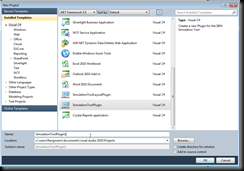
Screen shot 2010-08-05 at 10.59.59 AM

Once you confirm the new project will be created and loaded. The code already implements a simple plug-in. So let us set up the properties, so that we can run it. For this go to

Project\SimulationTool1Plugin Properties
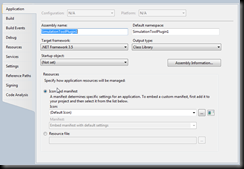
Screen shot 2010-08-05 at 11.05.23 AM

Here you want to change the ‘Assembly Information’ to provide a short description of your plug-in an set your Copyright information. Next you might want to change the Default Namespace and the Assembly Name. My recommendation is to use the same name for both. The Assembly Name controls what the name of the resulting .DLL will be.

Next let us flip to the Build tab:
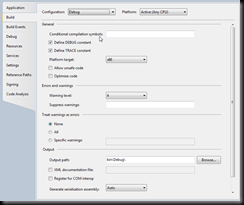
Screen shot 2010-08-05 at 11.08.40 AM

The key  elements here are: The platform target: make sure to select x86 (as the simulation tool uses native libraries that are compiled for 32bit only). The output path:

you want to set this one *for now* to the directory of the Simulation Tool:

C:\Program Files (x86)\KGI\SBW\roadrunner

on 64-bit systems and:

C:\Program Files\KGI\SBW\roadrunner

on 32 bit systems.

Finally, let us set up how to start the debug session:
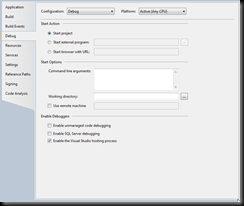
Screen shot 2010-08-05 at 11.15.02 AM

we want to start an external program:

C:\Program Files (x86)\KGI\SBW\roadrunner\SimDriverNET.exe or

C:\Program Files\KGI\SBW\roadrunner\SimDriverNET.exe

and we want to set the working directory to:

C:\Program Files (x86)\KGI\SBW\roadrunner or

C:\Program Files\KGI\SBW\roadrunner

(One note for express users: you won’t be able to start an external program in the express edition … I suggest you choose a Post Build Event to start the SimDriverNET executable by adding:

cd C:\Program Files\KGI\SBW\roadrunner && SimDriverNET.exe

as post build event now after every build you see the simdriver loaded with the new plugin, alas no debugging support.)

THAT IS IT … now we are ready to test our plug-in! close the property tab and press RUN. Our new plug-in is in an unnamed category so you can easily find it:
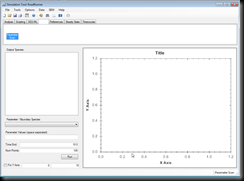
Screen shot 2010-08-05 at 11.19.33 AM

And when you load a model you can perform time course scans by entering values into it. Here a screenshot for the ‘oscli.xml’ file:
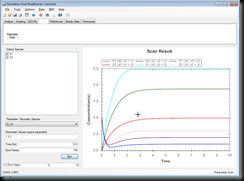
Screen shot 2010-08-05 at 11.25.20 AM

This is it you are all set up and ready to play with the plug-in. 

Graphical Initializer for CompuCell 3D

Currently, I’m with Herbert at the Indiana University, giving our SBW / CompuCell course. Over dinner we talked about how cumbersome it is to manually edit the Potts Initialization Files (PIF). This made me launch a new open source project, dubbed PifDesigner. I’ve put together a first prototype for 2D initializations, by either drawing, or initializing from images. The project is:

http://pifdesigner.sf.net

And here a screenshot of the new website.

2010-08-05_-_pifdesigner-web